
Microsoft unexpectedly released a new version of Teams, developed in a new architecture as an appx package. The initial plan was that the classic Teams app would be shut down at the end of June. Fortunately, Microsoft changed its mind and extended the deadline to the end of October.
Organizations using VMware Horizon to share applications from RDSH servers have encountered the challenge of making the new version of Teams available through Horizon. I myself also tried to find a solution to this problem, spending a lot of time analyzing it.
The first step was to identify the path to launch the new version of Teams, since Horizon was not detecting it in the list of installed applications. I reasoned that providing a direct path might allow the application to launch and log in. Therefore, I manually created a new application in the administration panel, according to the screenshots below:
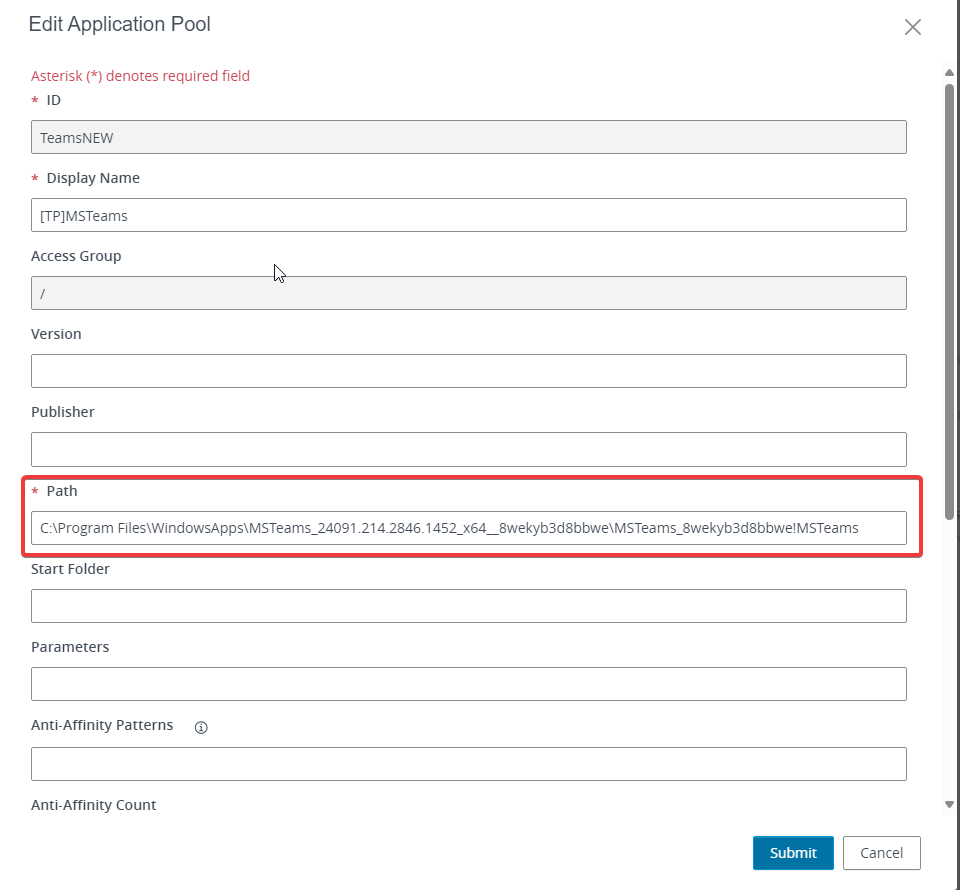
I then proceeded to launch the application from within VMware Horizon:
Unfortunately, it was not possible to log into the new version of Teams. I analyzed the potential causes of this problem and it turned out that the application mode is missing access to the Microsoft.AAD.BrokerPlugin library. This library is crucial because it allows applications to use the AAD service for user authentication and login. The BrokerPlugin acts as an intermediary, integrating AAD functions into applications. Although identifying this problem was a step forward, it did not completely solve the login problem.
Further analysis revealed that VMware Horizon uses a special proprietary shell in Windows Server that restricts access to certain system functions. This is intended to minimize the load on the machine by displaying unnecessary windows and loading unnecessary libraries.
Shell Launcher is a feature in Windows that allows you to launch a custom application instead of the default user interface (explorer.exe) when you log in. With Shell Launcher, IT administrators can configure the system to launch a selected application upon login, bypassing the default Windows desktop. This feature is particularly useful for special-purpose devices such as information kiosks, POS terminals or other embedded systems, where the user has access to only one specific application. VMware has developed its own Launcher for published applications, called vmware-view-unity-shell.
As described in the KB article https://kb.omnissa.com/s/article/94642, it is possible to test disable this shell. After disabling it, we found that logging into the new version of Teams and normal use of applications via Horizon became possible. However, this solution was not suitable for production deployment.
I gathered all the information, analysis and test results and submitted them to VMware. The problem was identified and solved by adding an AAD plugin to vmware-view-unity-shell. I had a hand in developing this fix, which was made available in agent version 2312.1, which can be downloaded: https: //customerconnect.omnissa.com/downloads/details?downloadGroup=HZN-2312.1-ENT&productId=1504&rPId=118195
Adding new Teams to golden image
Microsoft has published https://learn.microsoft.com/en-us/microsoftteams/new-teams-vdi-requirements-deploy documentation for installing new Teams, the initial requirements are defined in the table.
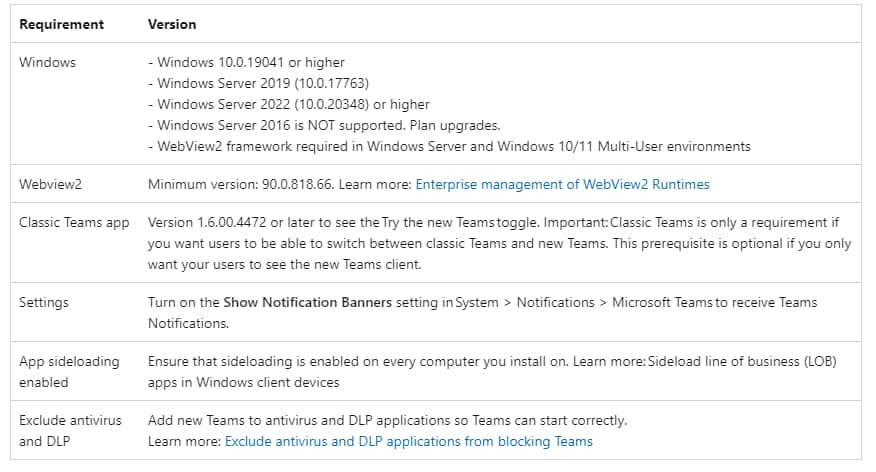
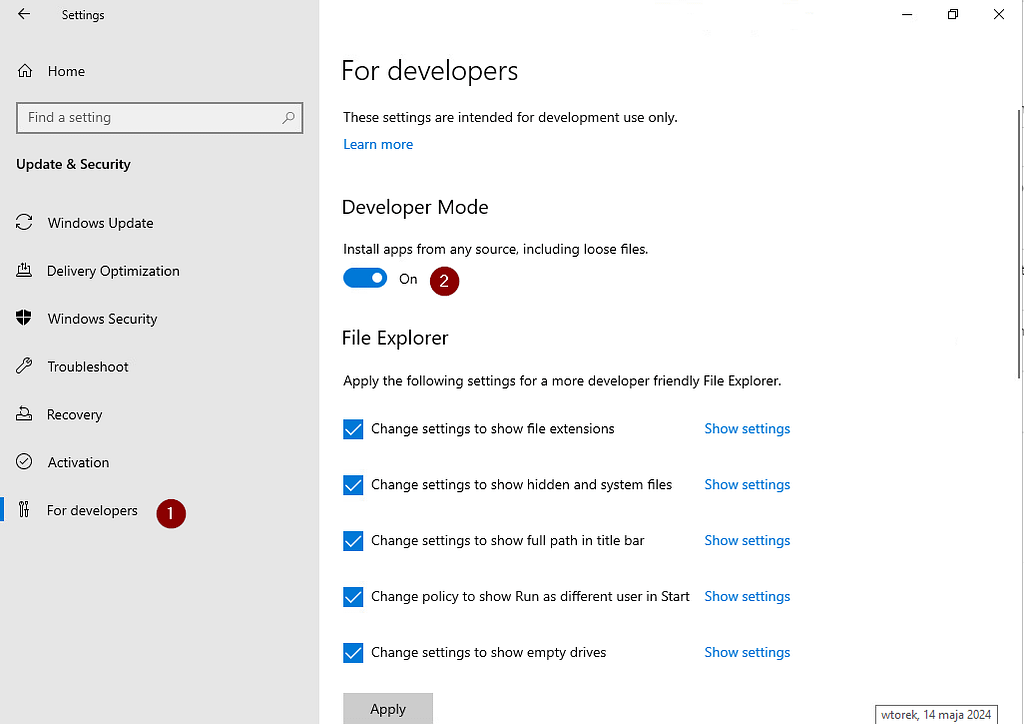
The first step is to enable sideloading on the system:
Windows Server 2022, settings -> update & security -> for developers -> toggle the Install apps from any source, including loose files option.
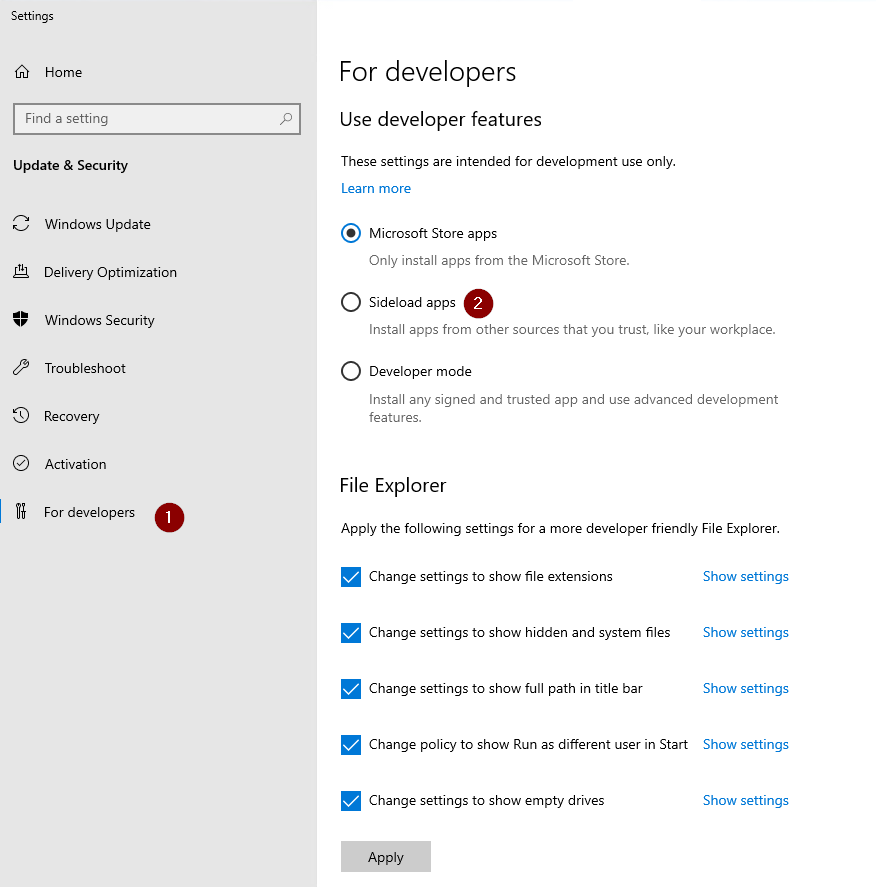
Windows Server 2019, settings -> update & security -> for developers -> toggle the Sideload app option
After installation, restore the default state.
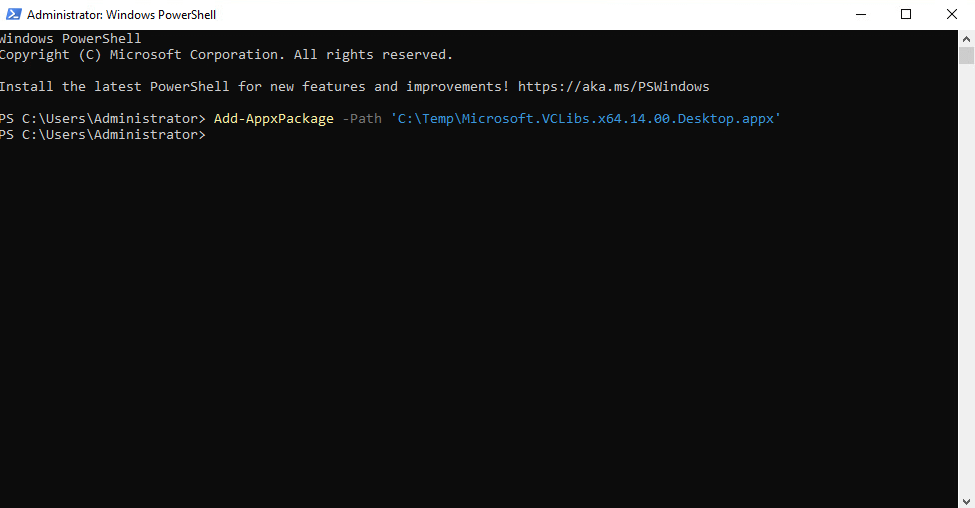
The next step is to install the Microsoft.VCLibs.x64.14.00.Desktop.appx package, which can be downloaded from https://aka.ms/Microsoft.VCLibs.x64.14.00.Desktop.appx, once downloaded, install with the powershell command
Add-AppxPackage -Path ‘C:\nMicrosoft.VCLibs.x64.14.00.Desktop.appx’
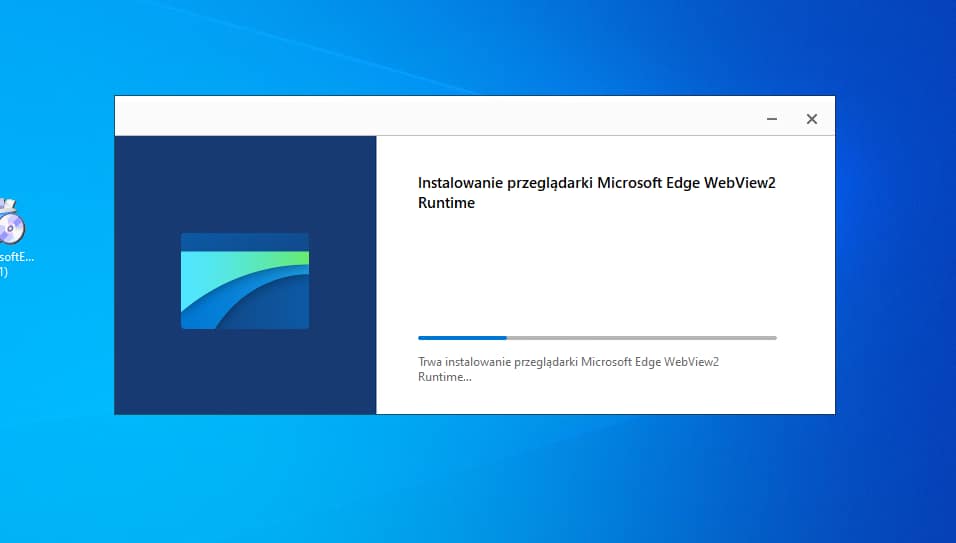
The necessary item according to the requirements is the installation of MS Edge WebView2 package, you can download from this page https://go.microsoft.com/fwlink/p/?LinkId=2124703
Installation is simple just run the downloaded file and wait for a while.
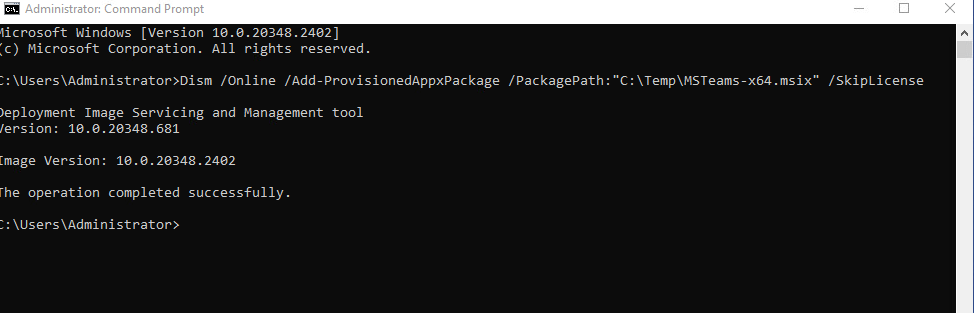
After installing the WebView2 package you need to download the package of new Temas, you can do it from the link https://go.microsoft.com/fwlink/?linkid=2196106&clcid=0x415&culture=pl-pl&country=pl
Adding the appx package is accomplished with the command:
Dism /Online /Add-ProvisionedAppxPackage /PackagePath:
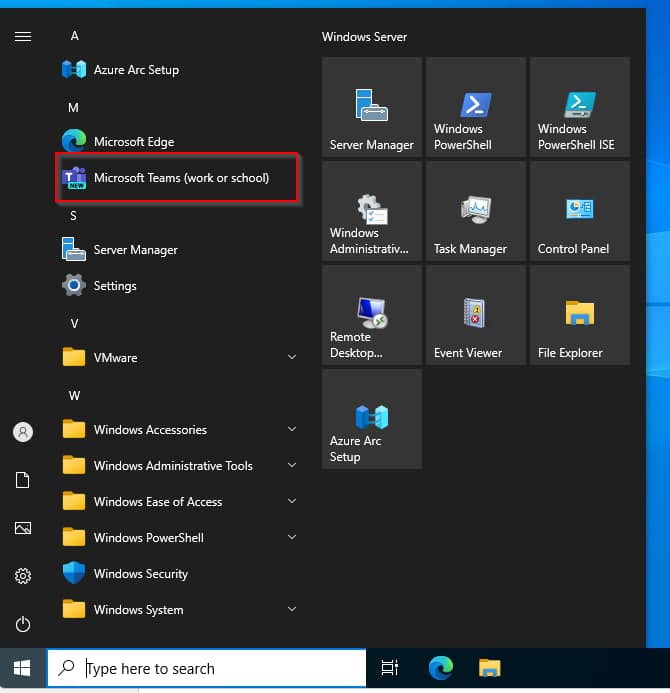
After proper installation, the new Teams are visible in the start menu
Then close the image and take a snapshot according to the organization’s procedure. If the farm already exists in Horizon you should replace the image with a new one, if it is to be a new farm you should create it from scratch.
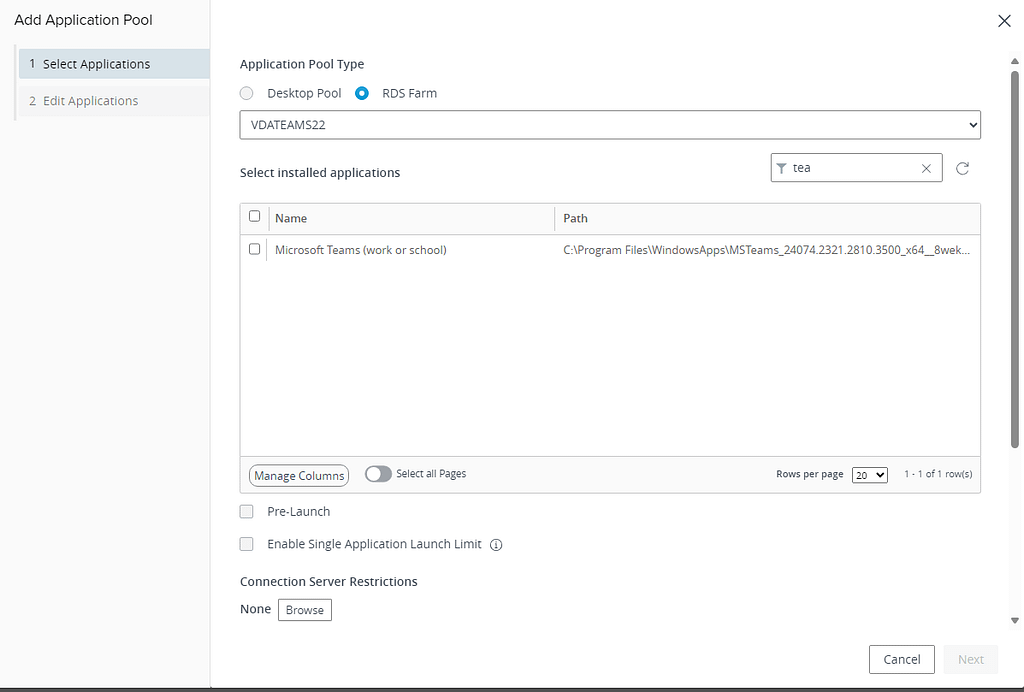
After replacing the image, in the wizard of adding applications will already show the entry Microsoft Teams (work or school), you should make this application available to users.
Now the application launches correctly, Teams optimization also works, below is the effect of the fix made by VMware (I shortened to a minimum this video):
If you have any questions or concerns then get back to me on my social media or write a comment.
Leave a Reply